ATIS Configuration
Open the ATIS Configuration window by clicking the ATIS Configuration button on the main vATIS display. This window allows you to add, modify, or delete ATIS stations. The left sidebar displays a list of all ATIS stations saved in the currently loaded profile.
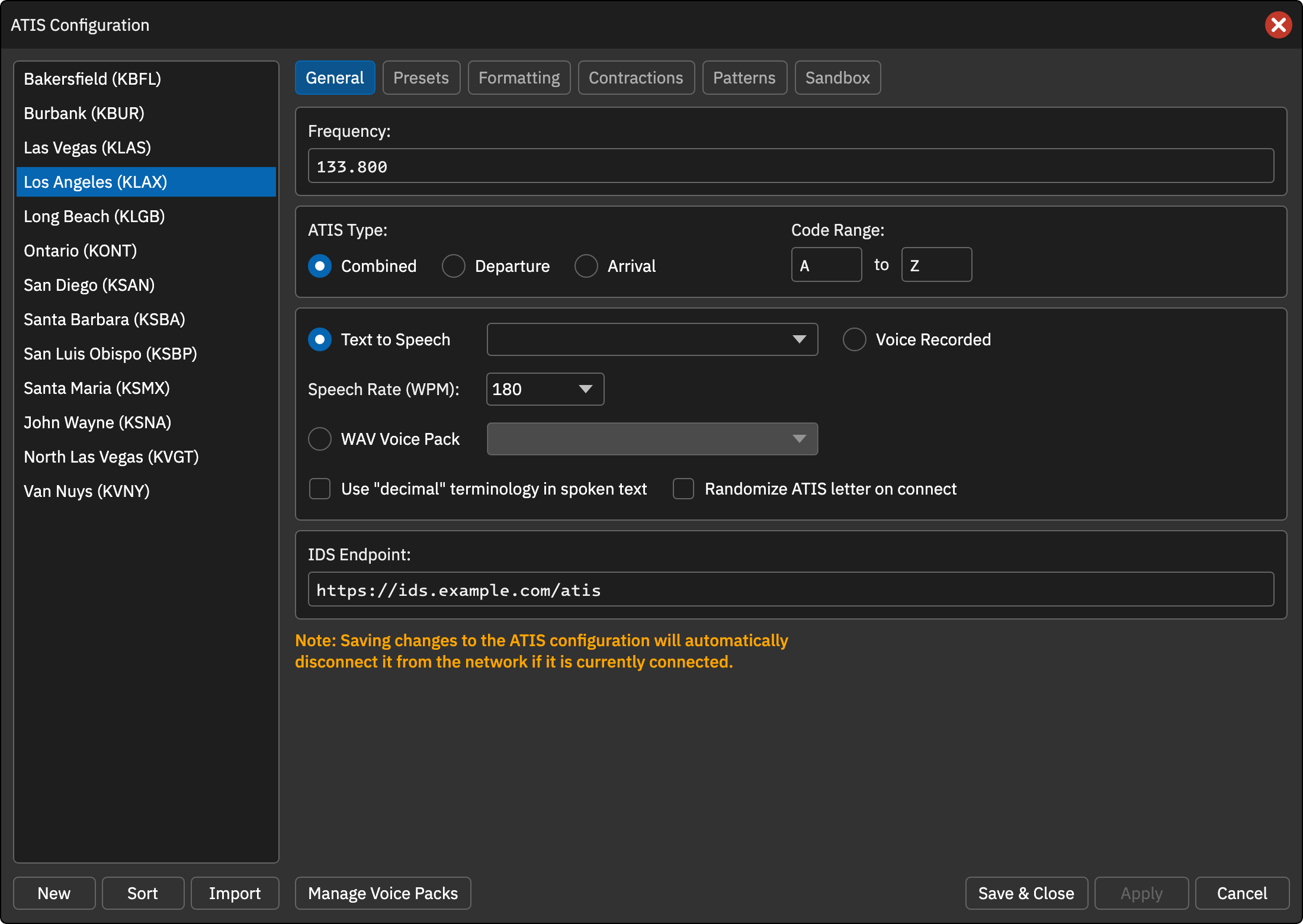
Below the station list are the New, Sort and Import buttons. Sort opens a dialog for changing the order of the stations, and Import adds a station from a .station or .zip file. Manage Voice Packs opens the Voice Packs window, and Save & Close, Apply and Cancel are at the bottom right. Each station has six tabs: General, Presets, Formatting, Contractions, Patterns and Sandbox.
Add New ATIS Station
To add a new ATIS station, click the New button at the bottom-left corner of the ATIS Configuration window. A dialog will appear, prompting you to enter the airport identifier (ICAO), the station name (typically the airport’s name), and the frequency. The identifier must be an airport vATIS knows about. Choose the ATIS station type: Combined, Departure, or Arrival. Click OK to save the station. If a station with the same identifier and type already exists, vATIS asks whether to overwrite it. Then, select the newly created ATIS station from the left sidebar to configure it.
Delete ATIS Station
To delete an ATIS station, right-click on the station in the left sidebar and select Delete from the context menu. vATIS asks you to confirm, and deleting the station also deletes all of its presets.
Rename ATIS Station
To rename an ATIS station, right-click on the station in the left sidebar and select Rename from the context menu. A dialog window will open prompting you to enter a new name for the station.
Copy ATIS Station
To copy an ATIS station, right-click on the station in the left sidebar and select Copy from the context menu. A dialog will appear, prompting you to enter the airport identifier, name, frequency and ATIS type for the new station. All other configured settings will be duplicated in the newly created station. A station with the same identifier and type as an existing one can’t be created.
Export ATIS Station
To export an ATIS station, right-click on the station in the left sidebar and select Export. A dialog will appear, allowing you to choose a location to save the exported ATIS station. The export is a .station file, or a .zip file that also contains the clips if the station uses a WAV voice pack.